You can setup multi-factor authentication using an email address or your preferred authenticator app, like Okta, Google, Microsoft, etc.
Multi-Factor Authentication is Required
By default multi-factor authentication is enforced using your account email address. This setting cannot be disabled. You can change it to a different email address or use your preferred authenticator app. If you do not set up any custom MFA devices or email address, you must verify your account email address whenever you login.
How to Setup Multi-Factor Authentication
Once logged in to your account, use the My Account menu on the top right
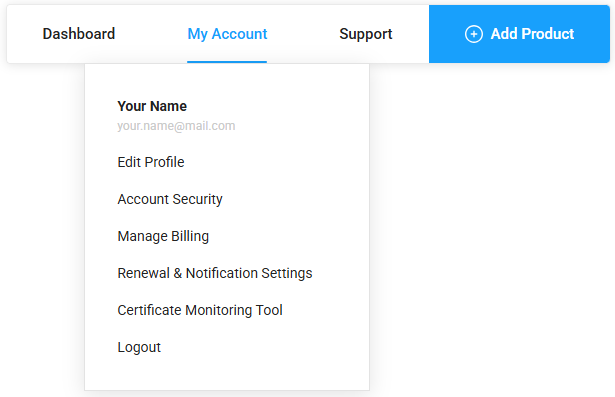
On the Account Access Control page, under Multi-Factor Authentication, click Setup to setup your preferred MFA device.
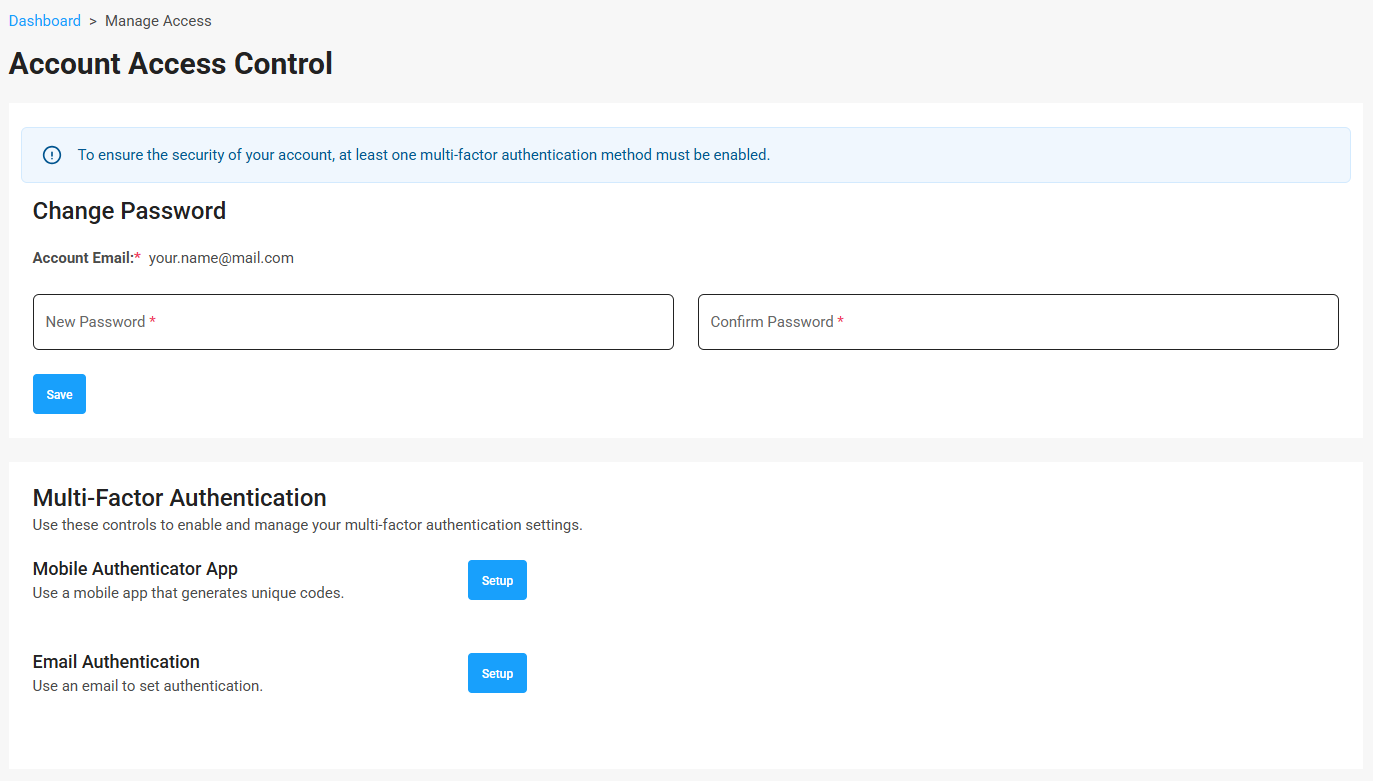
You can set up one or both of these settings:
- Mobile Authenticator App
- Email-based authentication
Remember, if no multi-factor authenticator app or email is setup, you must complete authentication with your account email address when you login.
Setup Authenticator App
To use a mobile authenticator app, click Setup.
Scan the QR code or enter the secret key in your preferred authenticator app. Then enter the verification code and submit.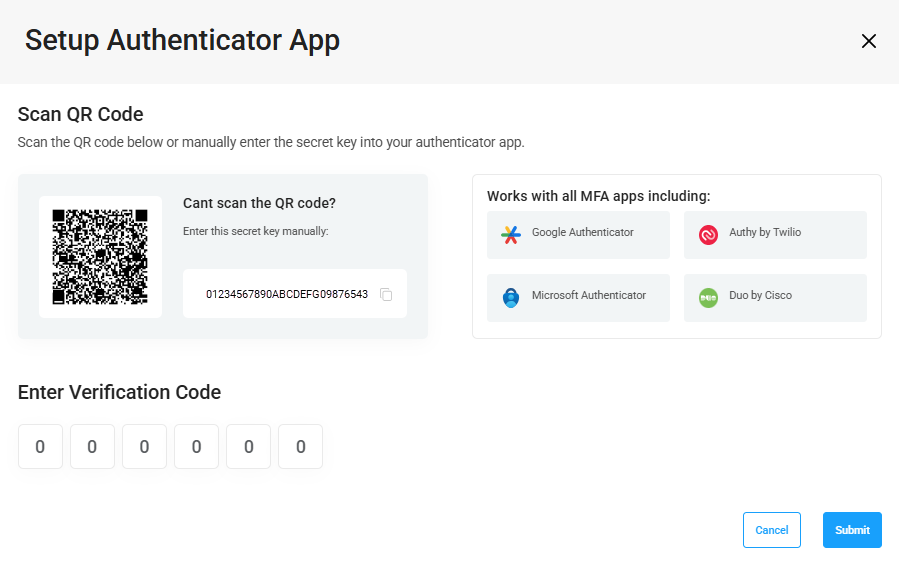
Once the account is added to your authentication app of choice, enter the 6-digit verification code displayed in the app and click Submit. Your multi-factor authentication should now be active.
Email Authentication
To use email-based authentication, click setup.
Enter any email address you want to use for authentication and click Send OTP Email.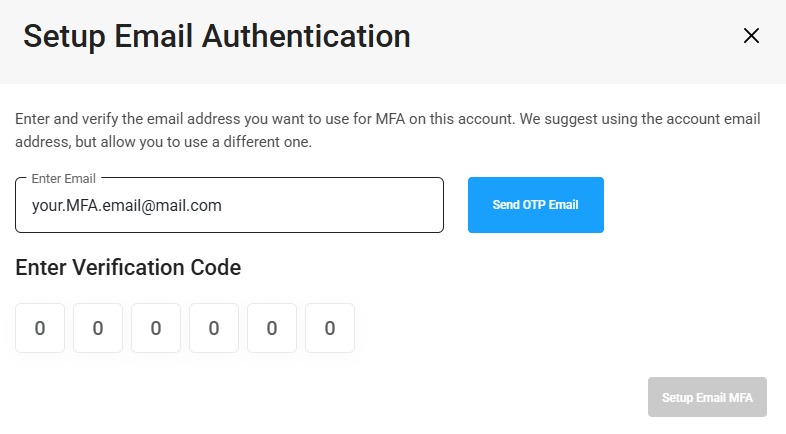
Check your inbox for the OTP email sent by support@cheapsslsecurity.com.
Enter the 6-digit verification code and click Setup Email MFA.
Change Your MFA Email Address
Click Change Email to switch to a different address for authentication.
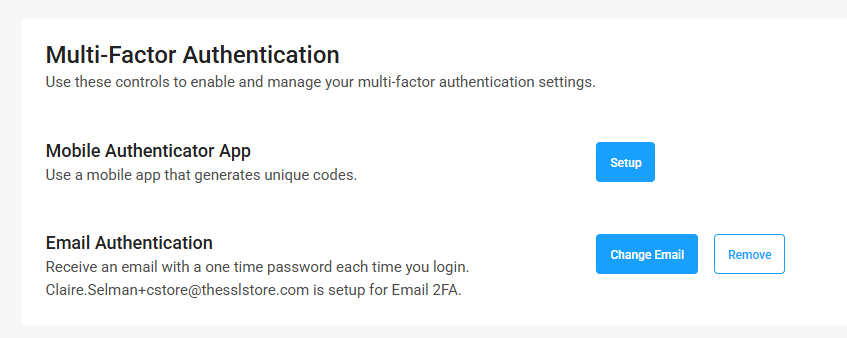
Enter the email address you want to use, and click Send OTP Email. Once you receive the verification code in your inbox, type in the code here and click Verify and Save. 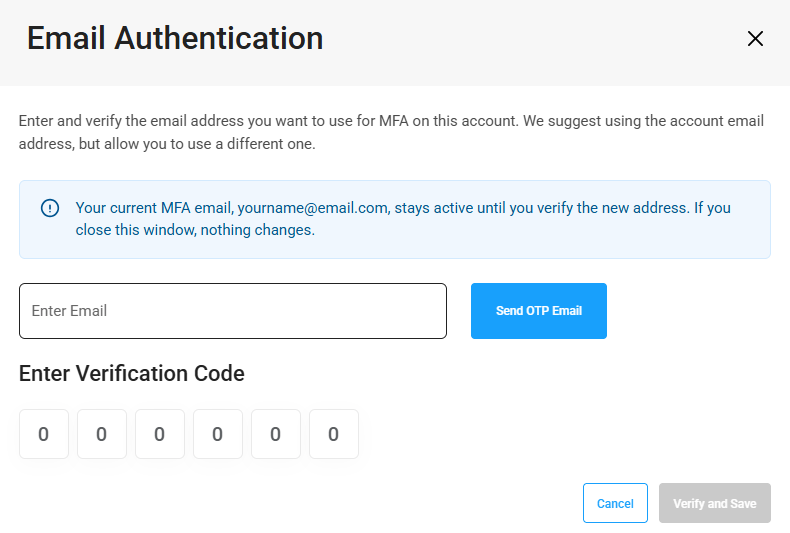
How to Remove Multi-Factor Authentication
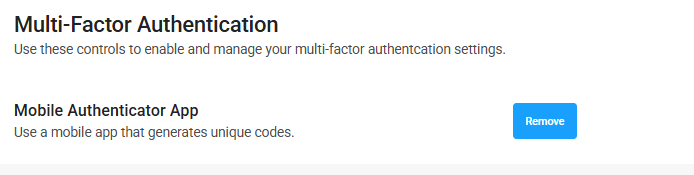
At least one multi-factor authentication method must be enabled. If you have both an email address and an authenticator device setup, click Remove to get rid of one of them. You cannot remove the only MFA device on your account while logged in.
If you are unable to login to the account, you can reset MFA on the login page. You must verify your account email address to remove all MFA settings. Once your MFA is reset, you'll need to verify your account email address to login until you setup a different MFA device.
Logout, then click the Login button. Enter your credentials and click login. On the MFA verification page, click Reset MFA.
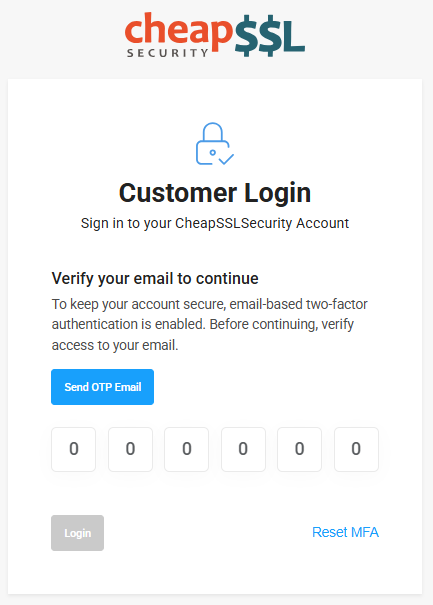
Click Send OTP Email - it will be sent to your account email address. Once you receive the 6-digit code, enter it and click Reset MFA & Login.
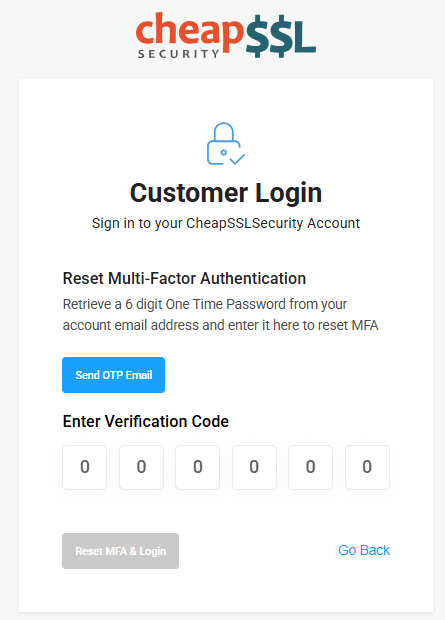 Your account will now be set to complete MFA with your account email address. You can add a new authenticator app or email address in your Account Security settings.